You Opened a Linux Terminal. Now What?
You typed ls / and got hit with a wall of folders — bin, boot, dev, etc, home, lib… and your brain said “nope.”
Don’t worry. Every Linux user has been there.
Here’s the truth: Linux’s filesystem isn’t random. It follows a beautiful, logical standard called the Filesystem Hierarchy Standard (FHS). Once you understand it, navigating any Linux system — Ubuntu, Arch, Debian, a cloud server, a Raspberry Pi — feels like reading a map you already know.
This guide breaks down every major directory, what lives there, why it exists, and when you’ll actually care about it.
First: Everything Starts at / — The Root Directory
Think of / (just a single forward slash) as the trunk of a tree. Every file, folder, and device on your entire Linux system hangs off this one point.
There’s no C:\ or D:\ like Windows. There’s just /. One tree. One root. Everything branches from here.
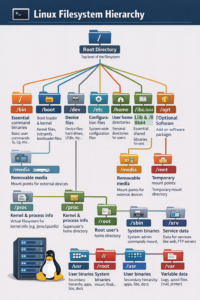
/
├── bin
├── boot
├── dev
├── etc
├── home
├── lib & lib64
├── media
├── mnt
├── opt
├── proc
├── root
├── sbin
├── srv
├── usr
└── var
Now let’s walk through each branch.
/bin — The Basic Toolkit
What it is: Essential command binaries (programs) that every user can run.
What lives here: ls, cp, mv, cat, echo, mkdir — the everyday commands you use constantly.
Think of it as: The toolbox that’s always within arm’s reach. Without /bin, you literally couldn’t do anything in a terminal.
Real-world moment: When you type ls to list files? That command is physically stored in /bin/ls. You’re running a file every single time.
/boot — The Ignition Switch
What it is: Everything needed to start up the operating system.
What lives here: The Linux kernel itself, initramfs (initial RAM filesystem), and bootloader files (like GRUB).
Think of it as: The key that starts the car. The system reads this directory before anything else is even loaded into memory.
Pro tip: Unless you’re customizing your bootloader or kernel, don’t touch /boot. Messing with it can make your system unbootable.
/dev — The Device Whisperer
What it is: Device files — Linux’s way of treating hardware as files.
What lives here: Representations of hard drives (/dev/sda), USB drives (/dev/sdb), terminals (/dev/tty), and even /dev/null (the famous “trash void” of Linux).
Think of it as: A control panel where every piece of hardware gets its own file handle.
Mind-bending fact: In Linux, everything is a file — including your keyboard, your screen, and your hard drive. /dev is where that philosophy becomes real.
/etc — The System’s Brain
What it is: System-wide configuration files.
What lives here: Network settings, user account info (/etc/passwd), SSH config, cron jobs, package manager settings — basically the settings menu for your entire OS.
Think of it as: The control panel of a building. Everything that governs how the system behaves lives here.
You’ll use this when: Setting up a web server, configuring SSH, changing hostnames, managing users, editing network interfaces. As a sysadmin, /etc is your second home.
/home — Your Personal Space
What it is: User home directories.
What lives here: Every regular user gets their own folder here. If your username is ali, your personal space is /home/ali — your documents, downloads, desktop, configs, and dotfiles.
Think of it as: Your bedroom in a shared apartment. Everyone else has one too, but yours is yours.
Good to know: The ~ symbol in the terminal is a shortcut for your home directory. cd ~ takes you straight home, no matter where you are.
/lib & /lib64 — The Shared Libraries
What it is: Essential shared libraries that core system programs need to run.
What lives here: .so files (shared objects) — the Linux equivalent of .dll files on Windows. Programs in /bin and /sbin pull from here constantly.
Think of it as: A common toolbox that multiple programs share instead of each carrying their own copies.
64-bit systems have both /lib (32-bit) and /lib64 (64-bit) because some software still needs both.
/media — Plug It In
What it is: Mount points for removable media.
What lives here: When you plug in a USB drive or insert a CD, Linux automatically mounts it under /media. For example: /media/username/USB_DRIVE.
Think of it as: The USB ports and disc trays of your filesystem.
Modern desktops handle this automatically. You plug in a drive, it shows up in /media, you eject it, it disappears. Clean and simple.
/mnt — The Manual Dock
What it is: Temporary mount points, set up manually by the user or admin.
What lives here: Usually nothing by default. It’s a staging area where sysadmins mount external drives, network shares, or disk images temporarily.
Think of it as: A temporary parking spot. You use it, then move on.
Difference from /media: /media is for auto-mounted removable devices. /mnt is for manual, admin-controlled mounts.
/opt — The Optional Extras
What it is: Optional add-on software packages.
What lives here: Third-party applications that don’t follow the standard Linux file layout — like Google Chrome, custom enterprise software, or manually installed tools.
Think of it as: The “extras” shelf. Software installed here keeps all its files together in its own subdirectory, instead of scattering them across the system.
Example: /opt/google/chrome/ — everything Chrome needs, neatly contained.
/proc — The Live Dashboard
What it is: A virtual filesystem that exposes real-time kernel and process information.
What lives here: It’s not real files on disk — it’s the kernel pretending files exist to give you live system info. /proc/cpuinfo shows your CPU details. /proc/meminfo shows RAM usage. /proc/1234/ shows everything about the process with ID 1234.
Think of it as: A live dashboard showing what the system is doing right now.
Cool trick: Run cat /proc/cpuinfo and see your CPU specs printed straight from the kernel. No app needed.
/root — The Admin’s Home
What it is: The home directory of the root user (system administrator).
What lives here: Personal files, scripts, and configs belonging to the superuser.
Think of it as: The manager’s private office. Regular users don’t have access here.
Why not /home/root? Because if /home is on a separate partition and fails to mount, the root user still needs a home directory to log in and fix things. /root stays close to the base system.
/sbin — Admin-Only Tools
What it is: System binaries reserved for the superuser.
What lives here: System administration commands like mount, fsck (filesystem check), iptables, reboot, and shutdown.
Think of it as: The staff-only section of the toolkit. Regular users can see these tools exist but can’t run most of them without sudo.
/srv — Service Data
What it is: Data for services provided by the system.
What lives here: If your Linux machine runs a web server, FTP server, or data repositories, the files they serve live here. For example, /srv/www/ for website files or /srv/ftp/ for FTP content.
Think of it as: The stockroom behind a shop counter — where the goods being “served” are stored.
Honestly? Many distros don’t use /srv consistently. You’ll mostly care about it when setting up servers.
/usr — The Big Library
What it is: User binaries and a secondary hierarchy of programs, libraries, and documentation.
What lives here: Most of the software you install ends up here — /usr/bin/ (user commands), /usr/lib/ (libraries), /usr/share/ (shared data), /usr/local/ (locally compiled software).
Think of it as: A massive library building that holds most of the system’s knowledge and tools.
Fun fact: /usr used to stand for “Unix System Resources.” It’s often the largest directory on a Linux system.
/var — The Living Log
What it is: Variable data — files that change constantly as the system runs.
What lives here: Log files (/var/log/), mail spools (/var/mail/), printer queues, databases, and cached package data (/var/cache/).
Think of it as: The system’s diary — a continuous record of what’s happening, what’s been queued, and what’s waiting to be processed.
Sysadmins love /var/log: Almost every problem you ever debug on Linux has a clue hiding somewhere in /var/log. It’s the first place to look when something breaks.
Quick Reference Cheat Sheet
| Directory | One-Line Purpose |
|---|---|
/ |
Root — everything starts here |
/bin |
Basic commands (ls, cp, mv) |
/boot |
Kernel and bootloader files |
/dev |
Hardware as files |
/etc |
System configuration files |
/home |
Personal user directories |
/lib /lib64 |
Shared libraries for core programs |
/media |
Auto-mounted removable drives |
/mnt |
Manual temporary mount points |
/opt |
Optional third-party software |
/proc |
Live kernel and process info |
/root |
Root user’s home directory |
/sbin |
Admin-only system commands |
/srv |
Data served by system services |
/usr |
User programs, libs, and docs |
/var |
Logs, spools, and variable data |
The Big Picture: Why This Design Is Genius
Linux’s filesystem hierarchy isn’t arbitrary — it’s deliberately separated by purpose and permission level:
- Stability vs. Change: Static system files (
/bin,/lib) are kept separate from constantly-changing data (/var). This makes backups and system recovery far easier. - User vs. Admin: Regular users live in
/home. The system admin lives in/root. Admin tools live in/sbin. The separation is intentional and enforces security. - Essential vs. Optional: Core stuff (
/bin,/etc) is separate from optional extras (/opt). If a non-essential partition fails, the core system still runs.
This is why Linux powers 96% of the world’s top web servers, every Android phone, and most cloud infrastructure. The design is built to be reliable, recoverable, and scalable.