Introduction
Duplicate content is one of the most overlooked yet damaging SEO issues that can quietly erode your WordPress site’s search rankings. It occurs when identical or substantially similar content appears on multiple URLs, confusing search engines about which version to index and rank. For WordPress users, this problem is particularly common due to the platform’s dynamic nature generating multiple URLs for categories, tags, archives, and pagination without proper configuration.
The consequences? Diluted rankings, wasted crawl budget, and lost organic traffic. But here’s the good news: WordPress duplicate content issues are entirely preventable and fixable. In this comprehensive guide, you’ll learn exactly how to identify, fix, and prevent duplicate content on your WordPress site using proven strategies and the right tools.
What Is Duplicate Content?
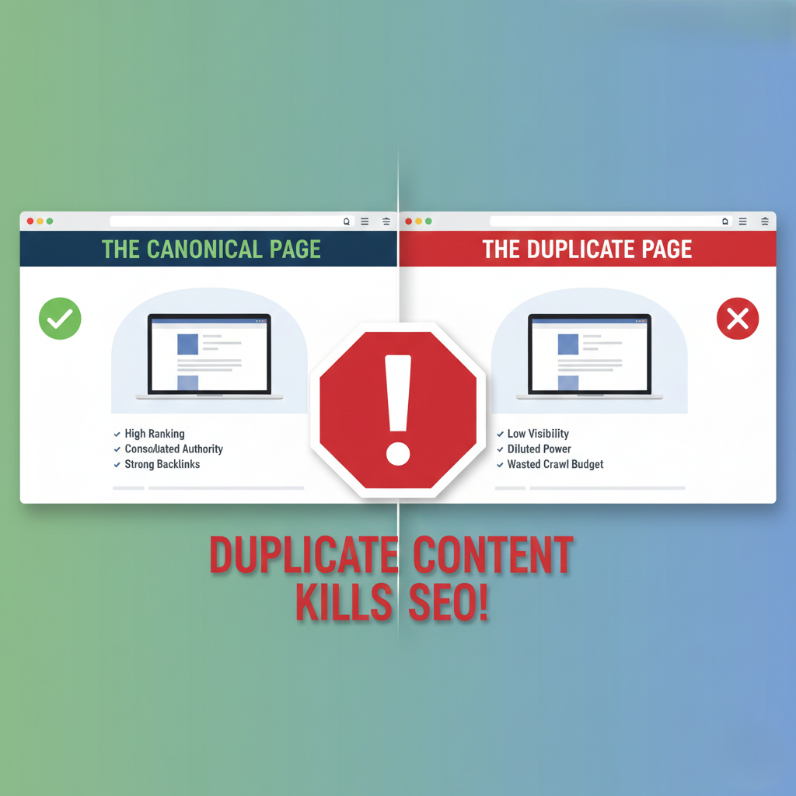
Duplicate content refers to blocks of content that appear on more than one URL, either within your own website (internal) or across different domains (external). Search engines like Google struggle to determine which version is the original or most relevant, leading to indexing and ranking problems.
Types of Duplicate Content
Internal Duplicate Content
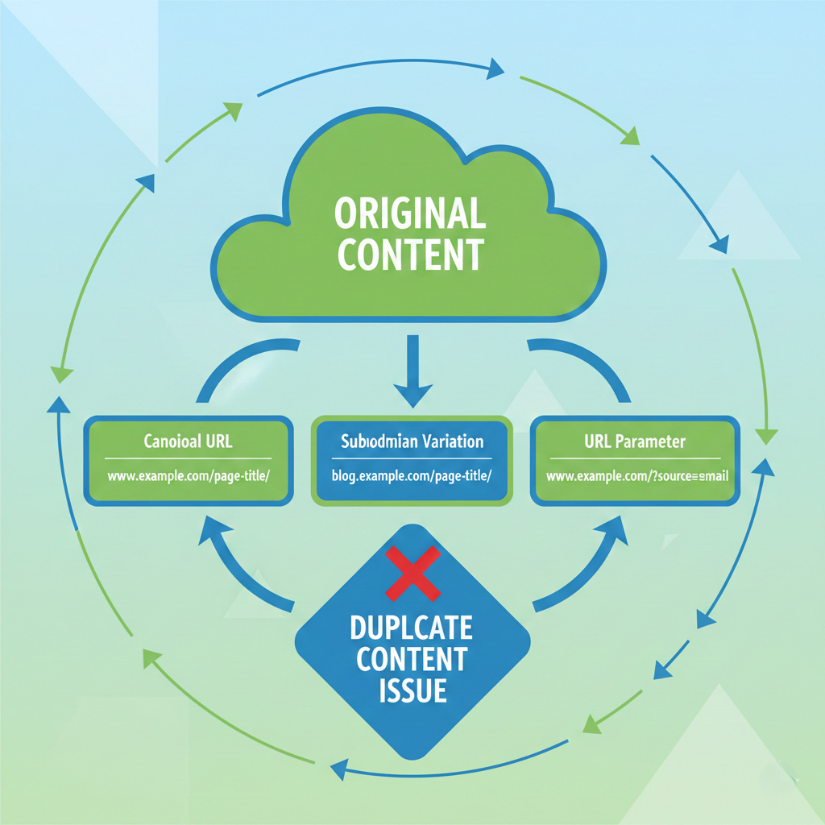
This occurs within your own website when the same content is accessible through multiple URLs. Common in WordPress due to category pages, tag archives, and URL variations.
External Duplicate Content
This happens when your content appears on other websites—whether through syndication, scraping, or plagiarism. While syndication can be legitimate, it still requires proper handling.
Common Examples in WordPress
- example.com/blog/post-title
- example.com/category/blog/post-title
- example.com/tag/keyword/post-title
- http://example.com vs https://example.com
example.com vs www.example.com
Common Causes of Duplicate Content in WordPress
WordPress’s flexibility creates several duplicate content traps:
Multiple URLs for the Same Content
WordPress automatically generates archives for categories, tags, authors, and dates—all potentially showing the same blog posts.
HTTP vs HTTPS
Without proper redirection, both http:// and https:// versions of your site remain accessible.
www vs non-www
Similarly, www.example.com and example.com can both load your site, creating complete duplicates.
Category & Tag Archives
Posts assigned to multiple categories or tags appear on multiple archive pages with identical content.
Author Archives
Multi-author sites create author archive pages that may duplicate content from main blog pages.
Pagination
Paginated archive pages (/page/2/, /page/3/) can create thin or duplicate content issues if not handled correctly.
URL Parameters
Session IDs, tracking parameters, and filter queries (?sort=date) create duplicate URLs pointing to the same content.
How to Find Duplicate Content on Your WordPress Site
Google Search Console
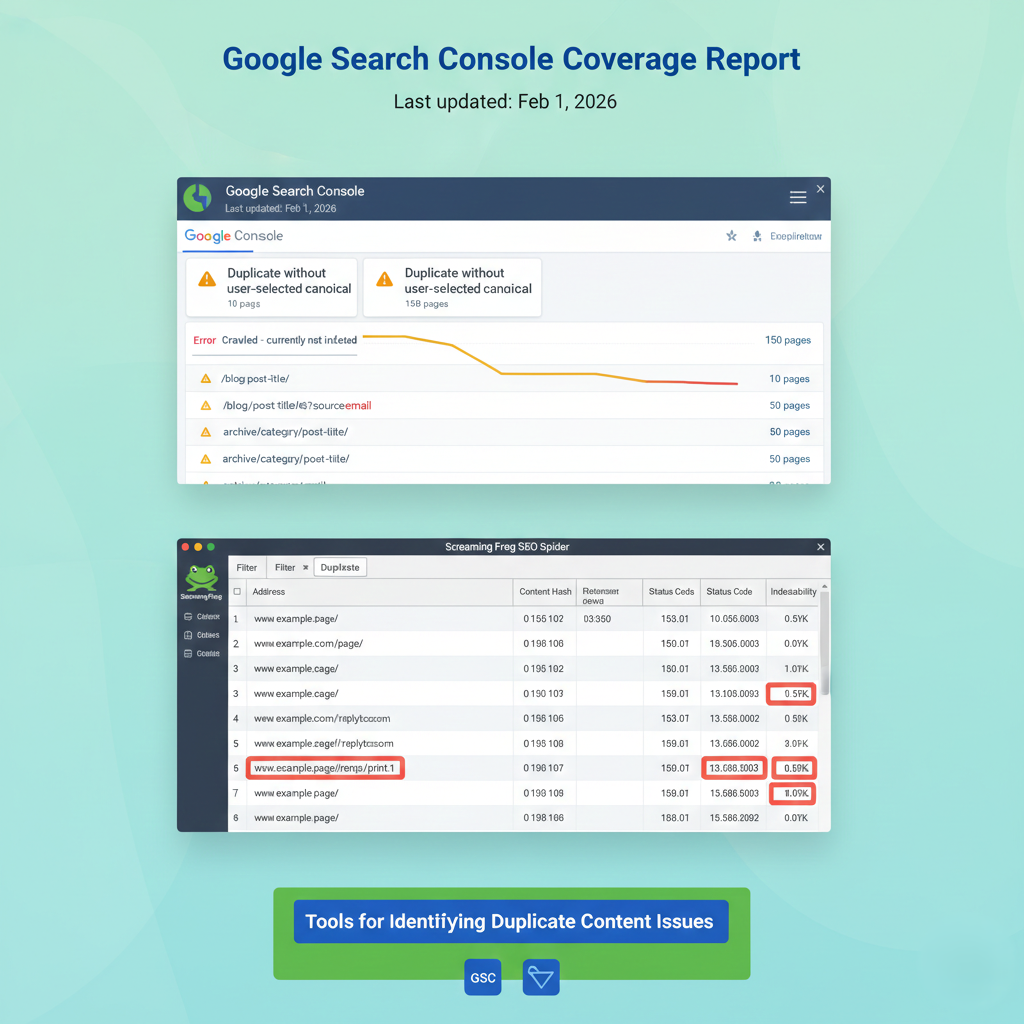
Navigate to Coverage report to identify duplicate pages that Google has detected. Look for warnings about “Duplicate, submitted URL not selected as canonical” or “Duplicate without user-selected canonical.”
Site Search Operators
Use Google search operators to find duplicates:
site:example.com “exact phrase from your content”
Look for multiple results showing the same content.
SEO Plugins
Tools like Yoast SEO and Rank Math include duplicate content checks and warnings in their analysis features.
Third-Party Tools
Screaming Frog SEO Spider
Crawl your entire site to identify duplicate title tags, meta descriptions, and content.
Ahrefs Site Audit
Detects duplicate content issues and provides specific URLs affected.
SEMrush Site Audit
Identifies duplicate pages, titles, and descriptions with actionable recommendations.
6.1 Use Canonical URLs
Canonical tags tell search engines which version of a page is the “master” copy.
How WordPress Handles Canonicals
Modern WordPress automatically adds canonical tags to most pages, but you should verify and customize them for archives and special pages.
Setting Canonicals with SEO Plugins
- Yoast SEO: Edit any post/page → Scroll to Yoast SEO meta box → Advanced tab → Set canonical URL
- Rank Math: Similar interface in the SEO meta box
- All in One SEO: Uses the General tab in post editor
6.2 Set Up Proper Redirects (301 Redirects)
Use 301 redirects when you have multiple versions of the same page and want to consolidate them permanently.
When to Use Redirects
- Migrating from HTTP to HTTPS
- Choosing between www and non-www
- Changing URL structure
- Merging similar content
How to Implement Use plugins like Redirection or add rules to your .htaccess file:
- apache
- Redirect non-www to www
- RewriteEngine On
- RewriteCond %{HTTP_HOST} ^example\.com [NC]
- RewriteRule ^(.*)$ https://www.example.com/$1 [L,R=301]
Important: Avoid redirect chains (A → B → C). Always redirect directly to the final destination.
6.3 Choose a Preferred Domain (www or non-www)
In WordPress Settings
- Go to Settings → General
- Set both “WordPress Address (URL)” and “Site Address (URL)” to your preferred format
- Save changes
In Google Search Console Google no longer requires domain preference settings, but ensure your canonical tags consistently use your chosen format.
6.4 Noindex Duplicate Pages
The noindex meta tag tells search engines not to index specific pages while still allowing them to crawl and follow links.
When to Use Noindex
- Category and tag archives (if they don’t add unique value)
- Author archives (on single-author blogs)
- Date-based archives
- Search results pages
- Paginated pages beyond page 1
How to Implement with Yoast SEO
- Go to SEO → Search Appearance
- Navigate to Taxonomies or Archives tabs
- Toggle “Show [taxonomy] in search results?” to No
6.5 Optimize Category and Tag Pages
Rather than noindexing all taxonomy pages, make them valuable:
Add Unique Descriptions
Write 150-300 words of unique content at the top of each important category/tag page explaining what users will find.
Limit Tag Creation
Be strategic—only create tags that will have multiple posts and provide real navigational value.
Use Category-Specific Excerpts
Instead of showing full posts, display excerpts to prevent exact content duplication.
6.6 Handle Pagination Correctly
WordPress Pagination Best Practices
WordPress handles pagination reasonably well by default, but you can optimize:
- Use rel=”prev” and rel=”next” tags (handled automatically by WordPress 4.7+)
- Set canonical tags on paginated pages to point to themselves, not page 1
- Consider using a “View All” page for critical content series
- Ensure adequate unique content on each paginated page
Best WordPress Plugins to Manage Duplicate Content
Yoast SEO
Key Duplicate Content Features:
- Automatic canonical URL generation
- Noindex controls for taxonomies and archives
- Breadcrumb implementation
- XML sitemap with duplicate prevention
- Content analysis for thin content warnings
Best For: Beginners to intermediate users who want comprehensive SEO with duplicate content protection built-in.
Rank Math
Key Duplicate Content Features:
- Advanced canonical URL settings
- Granular noindex/nofollow controls
- 404 monitor and redirect manager
- Schema markup (helps with rich results)
- Built-in redirect module
Best For: Users who want more control and additional features like redirects without installing multiple plugins.
All in One SEO
Key Duplicate Content Features:
- Canonical URL customization
- Robots meta settings per post type
- Duplicate content detection
- Redirection manager (in Pro version)
- RSS content protection
Best For: Users migrating from older SEO plugins who want familiar interfaces.
Redirection Plugin
Specific Use Case: Managing 301/302 redirects without editing code.
Features:
- Easy redirect creation and management
- Import/export redirects
- 404 error logging
- Redirect tracking and statistics
Best Practices to Prevent Duplicate Content in the Future
Content Planning Strategy
Create Unique, Valuable Content
Before publishing, verify your content offers something new. Don’t create multiple posts targeting the same keyword with similar information.
Consolidate Similar Content
If you have multiple old posts on similar topics, consider merging them into one comprehensive guide and redirecting the old URLs.
URL Structure Consistency
Establish URL Rules Early
- Choose your preferred domain format (www or non-www)
- Decide on HTTPS from the start
- Use consistent permalink structure
- Avoid changing URLs unless absolutely necessary
WordPress Permalink Settings Use Settings → Permalinks to choose a structure and stick with it. The “Post name” option (/%postname%/) is generally best for SEO.
Internal Linking Best Practices
Link to Canonical Versions
Always link to the canonical version of your pages in your internal links. Avoid linking to category/tag archives when you mean to link to the actual post.
Use Absolute URLs
While relative URLs work, absolute URLs (https://example.com/page) make canonical preferences clearer.
Avoid Copying Content
Never Duplicate Your Own Content
If you need to reference information from another post, link to it or write a fresh summary—don’t copy-paste entire sections.
Handle Syndication Properly
If republishing content elsewhere:
- Add canonical tags pointing back to your original
- Include clear attribution and links
- Wait 24-48 hours after original publication
Regular SEO Audits
Monthly Checks
- Review Google Search Console for duplicate content warnings
- Check for new duplicate title tags or meta descriptions
- Monitor indexed pages count for unusual spikes
Quarterly Deep Audits
- Full site crawl with Screaming Frog
- Review all noindex settings
- Verify canonical tags are correctly implemented
- Check for broken redirects or redirect chains
Final Checklist for Duplicate Content Fixes
Use this checklist to ensure your WordPress site is protected:
Domain & Protocol Setup
- Chosen preferred domain (www or non-www) set in WordPress settings
- 301 redirects implemented from non-preferred to preferred domain
- HTTPS enforced site-wide with 301 redirects from HTTP
- SSL certificate properly installed and verified
Canonical Configuration
- Canonical tags automatically generated by SEO plugin
- Self-referencing canonicals on all important pages
- Cross-domain canonicals set up if syndicating content
- Paginated pages have proper canonical implementation
Indexing Controls
- Unnecessary taxonomies set to noindex (tags, dates, authors if applicable)
- Search results pages noindexed
- Attachment pages handled (redirected or noindexed)
- Low-value archive pages noindexed
Redirects
- Old URLs redirected to new ones (if structure changed)
- No redirect chains present
- 404 pages monitored and fixed
- Redirect plugin configured or .htaccess rules in place
Content Quality
- No duplicated content within your own site
- Category descriptions added to important categories
- Thin content pages consolidated or expanded
- Syndicated content properly attributed with canonical tags
Monitoring
- Google Search Console set up and verified
- XML sitemap submitted
- Regular crawl audits scheduled
- Duplicate content warnings monitored
Conclusion
Duplicate content issues might seem technical and overwhelming, but they’re entirely manageable with the right approach. By implementing canonical tags, strategic noindex directives, proper redirects, and using quality SEO plugins, you can protect your WordPress site from the ranking dilution and traffic loss that duplicate content causes.
Remember: prevention is easier than cure. Establishing good practices from the start—choosing a consistent URL structure, being strategic with taxonomies, and creating unique content—will save you countless hours of cleanup work later.
The most important takeaway? Duplicate content isn’t about Google penalties—it’s about ensuring search engines understand your site structure and can properly credit your content with the authority it deserves.