Linux File Permissions Explained for Beginners
Linux is one of the most powerful and secure operating systems used in servers, cloud infrastructure, DevOps, cybersecurity, and enterprise environments. One of the most important concepts every Linux user should understand is file permissions.
When working in Linux, you will frequently use the ls -l command to display detailed information about files and directories.
Example:
drwxr-xr-x 2 root fighter 4096 Feb 9 14:03 conf.d
At first glance, this output may look confusing for beginners. However, every field contains important information about how Linux manages files and directories.
In this guide, we will break down each section step by step.
Everything in Linux is Either a File or a Directory
One of the most fundamental concepts in Linux is:
Everything is treated as either a file or a directory.
This design philosophy makes Linux extremely organized, scalable, and secure.
Examples include:
- Documents → Files
- Applications → Files
- Hardware devices → Files
- Configuration settings → Files
- Folders → Directories
Linux manages access to these resources using permissions.
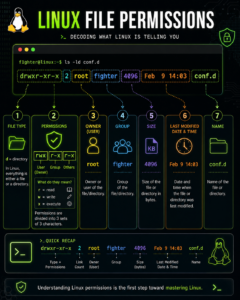
Understanding the Linux ls -l Output
Let’s analyze the following command output:
drwxr-xr-x 2 root fighter 4096 Feb 9 14:03 conf.d
Each field has a specific purpose.
1. File Type Indicator (d)
The very first character indicates the type of file.
d
In this example:
d= Directory
Common file type indicators:
| Symbol | Meaning |
|---|---|
| d | Directory |
| – | Regular file |
| l | Symbolic link |
| c | Character device |
| b | Block device |
Since the output starts with d, it means conf.d is a directory.
2. Linux Permission Fields (rwxr-xr-x)
The next section represents permissions.
rwxr-xr-x
These permissions are divided into three groups:
rwx r-x r-x
| Section | Represents |
|---|---|
| rwx | Owner/User permissions |
| r-x | Group permissions |
| r-x | Others permissions |
Understanding Permission Characters
| Character | Meaning |
|---|---|
| r | Read |
| w | Write |
| x | Execute |
Owner Permissions (rwx)
The owner has:
- Read access
- Write access
- Execute access
This means the owner can fully control the directory.
Group Permissions (r-x)
The group can:
- Read files
- Execute/access directory
But cannot modify files because write permission is missing.
Others Permissions (r-x)
Other users on the system can:
- Read
- Execute
But cannot write or modify.
3. Link Count (2)
2
This number represents the link count.
For directories, it usually indicates:
- The directory itself
- Its subdirectories
This value changes as directories are added or removed.
4. Owner of the File (root)
root
This field shows the owner of the file or directory.
In Linux:
- Every file has an owner
- The owner controls permissions
- Ownership helps enforce security
root is the superuser account in Linux with full administrative privileges.
5. Group Ownership (fighter)
fighter
This represents the group associated with the file.
Linux uses groups to simplify permission management.
For example:
- Developers group
- Admin group
- DevOps group
Users inside the same group can share controlled access to resources.
6. File or Directory Size (4096)
4096
This field represents the size of the directory in bytes.
For directories, Linux often shows:
4096
because it stores metadata and references to contained files.
7. Last Modified Date and Time
Feb 9 14:03
This indicates when the file or directory was last modified.
This information is useful for:
- Troubleshooting
- Auditing
- Monitoring configuration changes
- Tracking deployments
8. File or Directory Name (conf.d)
conf.d
This is the actual name of the directory.
Directories like conf.d are commonly used in Linux configuration systems to organize modular configuration files.
Why Linux File Permissions Matter
Linux permissions are one of the biggest reasons Linux is considered secure and reliable.
Proper permissions help:
- Prevent unauthorized access
- Protect sensitive data
- Secure servers
- Isolate users
- Manage enterprise environments safely
This permission model is heavily used in:
- DevOps
- Cloud Computing
- Cybersecurity
- System Administration
- Kubernetes
- Docker
- Enterprise Infrastructure
Common Linux Commands Related to Permissions
Change Permissions
chmod
Example:
chmod 755 file.sh
Change Ownership
chown
Example:
chown root:developers file.txt
View Detailed File Information
ls -l
Final Thoughts
Understanding Linux file permissions is one of the first major steps toward becoming proficient in Linux administration.
The ls -l command may look simple, but it reveals critical details about:
- Security
- Ownership
- Access control
- System organization
Once you master file permissions, many advanced Linux concepts become easier to understand.
Whether you are learning Linux for DevOps, cybersecurity, cloud engineering, or backend infrastructure, mastering permissions is essential.
Frequently Asked Questions (FAQ)
What does drwxr-xr-x mean in Linux?
It represents:
- File type
- Owner permissions
- Group permissions
- Others permissions
What does d mean in Linux permissions?
d indicates that the item is a directory.
What is rwx in Linux?
r= readw= writex= execute
Why are Linux permissions important?
Permissions help secure systems by controlling who can access, modify, or execute files.
Which command shows Linux file permissions?
ls -l